.png?width=1440&height=202&name=Logo_Color%20(1).png)
Updating Certification Templates
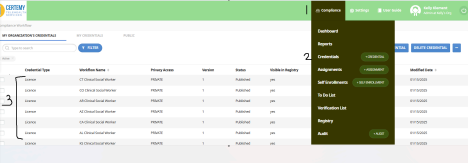
- Navigate to Compliance/ Credentialing (this name will vary as it is based on the org preference for the labeling of the field) (1) → Credentials (2) → Select Credential in question (3).
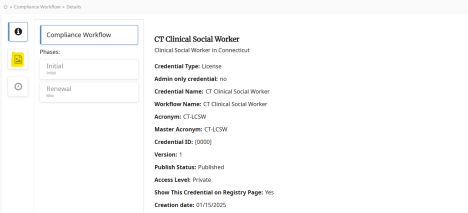
 2. On the left hand side, click on the paper icon:
 3. If you already have a file, click on the Edit button (bottom right) → Click on replace image.
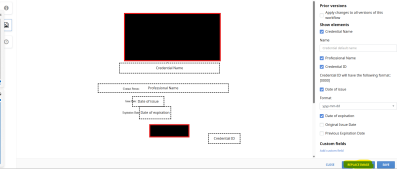 4. If you do not have a file, drop the certification template file from your computer.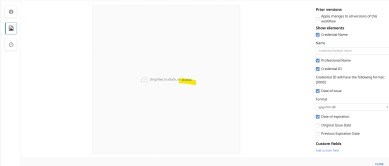
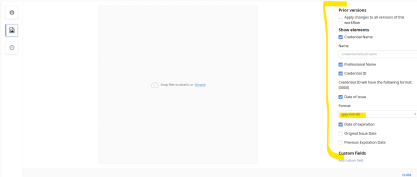
- You may include/ exclude fields by clicking/ unclicking them on the right hand side.
- You may also adjust the format of certain field values (i.e. date).
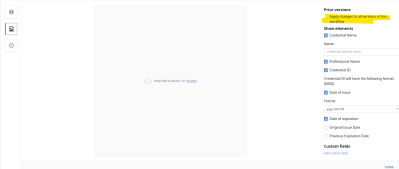
 6. If you have an existing file you are updating, and would like to update existing
generated certificates (those sitting in the user’s digital wallet), you will want to select “Apply changes to all versions of this workflow”.
 7. Click Save.
***NOTE: The option to update previous versions (Step 6) will NOT automatically update the users certificate, you will need to go in and regenerate individually. To do this:
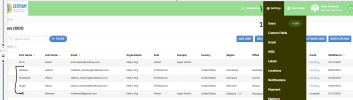
- Go to Settings → Users → Click on the Professional in question.
 2. Left side, Click Registry Details → Click on the workflow you updated and would like to generate a new file for.
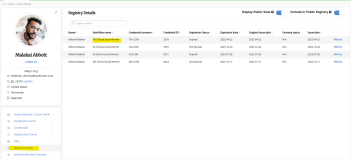 3. Select any field (not recommended to use date fields).
- For Example: Disciplinary Action = No.
- Save
- A box will come up to Generate a new file → Cancel.
 d. Go back in and Click on the same field, Disciplinary Action = change back to original value.
- Save
- A box will come up to Generate a new file → YES.
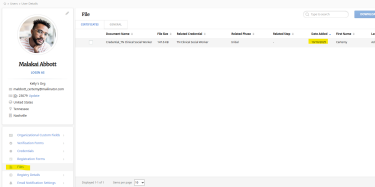
 g. On the user screen, click on files. You will see the new generated file with today’s date.