.png?width=1440&height=202&name=Logo_Color%20(1).png)
Adding Users
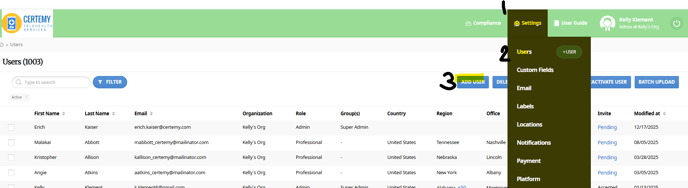
- Navigate to Settings (1) → Users (2) → Add User (3)
- Enter the required information - Required: Type(s), name, email, and office:
- User Type (1) = Professional - if tech/professional (one getting licensed/certified).
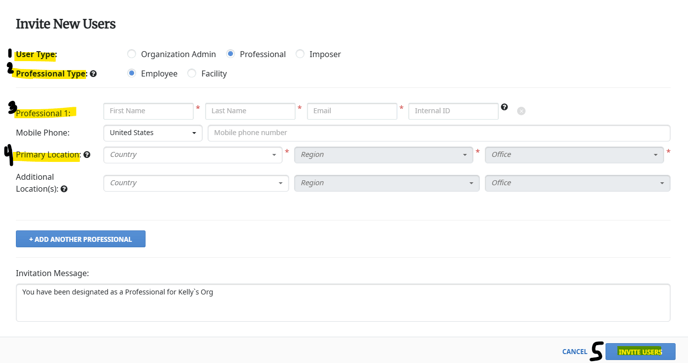
- First Name (3)
- Last Name (3)
- Email (3) - Certemy is email driven and is the unique identifier. This will be the email address used when the user logs in.
- Primary Location (4) - User works out of (access driven).
- Can set up multiple office locations once the user is created.
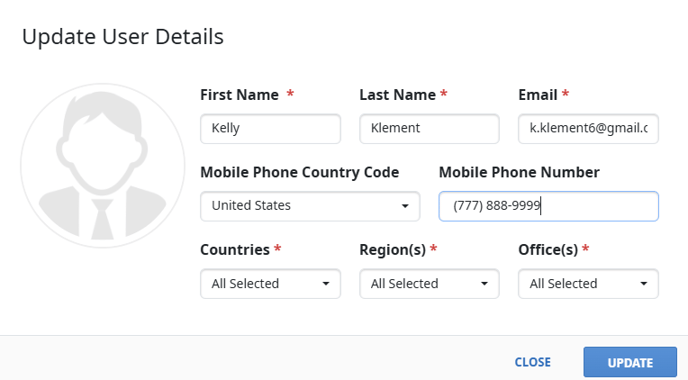
- Repeat Step 1 → Click on User → Click on Pencil (top left corner, above picture).
- Can set up multiple office locations once the user is created.
- Click Invite User
- This does send a real-time invitation to the user.
- The user will need to take action from the email to activate and register their account.
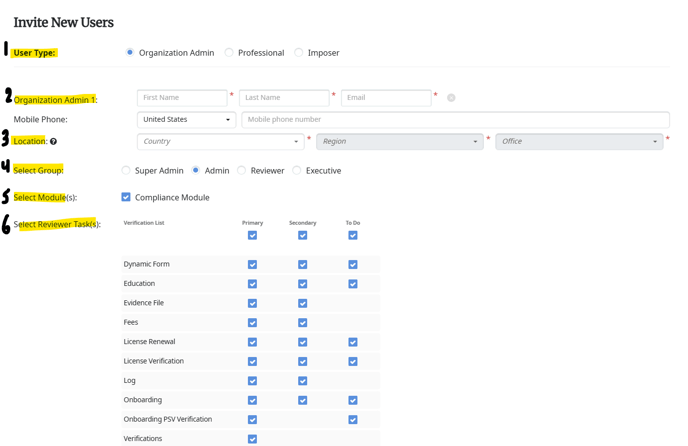
- User Type (1) = Professional - if tech/professional (one getting licensed/certified).
-
- First Name (2)
- Last Name (2)
- Email (2) - Certemy is email driven and is the unique identifier. This will be the email address used when the user logs in.
- Location (3) - User works out of (access driven).
- Can set up multiple office locations once the user is created.
- Repeat Step 1 → Click on User → Click on Pencil (top left corner, above picture).
- Can set up multiple office locations once the user is created.
- Select Group (4) - Access Rights Driven.
- Super Admin = full access
- Admin = access shown on bottom of page
- Reviewed = can see and approve workflows
- Executive = can see, no changes (view only).
- Select Modules - this is defaulted, leave as shown.
- Access - can change on an individual basis.
- Click Invite User.
- This does send a real-time invitation to the user.
- The user will need to take action from the email to activate and register their account.
Removing Users
- Navigate to Settings (1) → Users (2) → Left side, search box (3), search user.
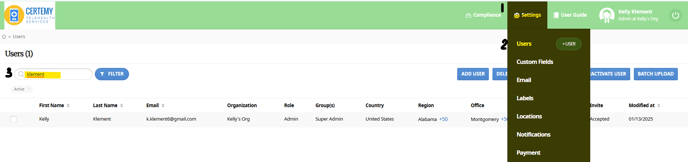
- Click the checkbox on the left of the user’s name. You can Delete or Deactivate which will make the user inactive in the system.
- Delete = delete when it is a duplicate account or a user that will not be allowed to renew their credential any longer.
- Deactivate = if the user will come back at some point.
- You may also update the user email address to ensure they are unable to log in and make additional changes (i.e. admin users).
- Repeat Step 1 to search for the user.
- Under the search box, there is an Active filter, click on the “x” on this filter.
- Click on the user.
- On the left, above user picture, click on pencil
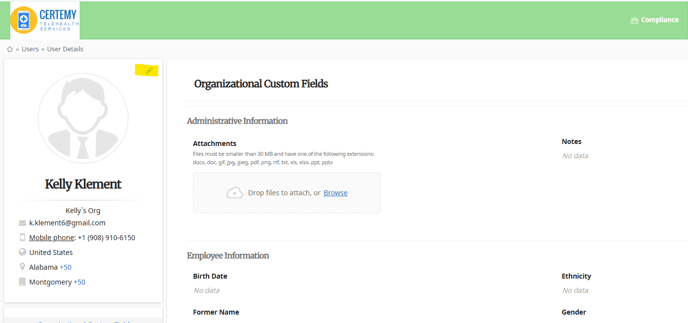
e. Here, you can update any of the information. For the email, you may want to add DEL or DELETE in front and behind the email.