.png?width=1440&height=202&name=Logo_Color%20(1).png)
(User) Batch Upload
Add or Update Multiple Users via Batch Upload Batch Upload
Navigate to Settings (1) → Users (2) → Batch Upload (3).
 Here you will find a sample load file. You can use this as a template.
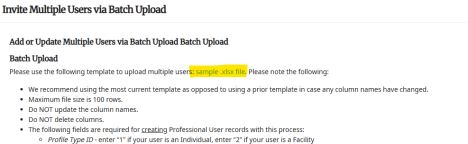 Please note the following:
- We recommend using the most current template as opposed to using a prior template in case any column names have changed.
- Maximum file size is 100 rows.
- Do NOT update the column names.
- Do NOT delete columns.
- The following fields are required for creating Professional User records with this process: ○ Profile Type ID - enter “1” if your user is an Individual, enter “2” if your user is a Facility
■ Email Address, First Name & Last Name are required for Individuals
■ Email Address & First Name (Business Name) are required for Facilities ○ Office - please note that by “Office” we mean the location of the user. We recognize that the label you use for “Office” may be different. Please enter the name of the office exactly as you have it in the platform.
- The following fields are required for updating existing users:
○ Email Address or Internal ID
- Use Profile Status to set or update the user’s status.:
○ Acceptable values are “ACTIVE”, “INACTIVE”, or “DELETED”
○ Users are added as “Inactive” by default.
- Mobile Phone values currently support a 10-digit phone number. Do NOT include spaces, hyphens, periods, parenthesis or other special characters.
- Mobile Phone Country values should be 3 letter county codes (e.g. “USA” or “CAN”) ● Your organization’s current custom organization fields are included in this template. ○ All dates added to file should be in format “YYYY-MM-DD”.
○ All numbers with decimals should be separated by periods, not commas.
○ If updating existing custom organization field values, blank (empty) fields in the
spreadsheet will be skipped. Existing values will remain.
Steps to Upload:
- Select the role you are loading in with your file (roles will vary depending on org setup).
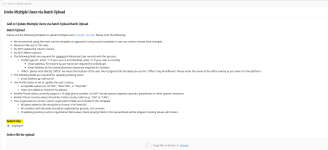
- Attach the file.
- Select Submit File.
- This will take you to the File Load options page.
- The system will load and check for errors.
- Duplicate users (if they already exist) will not be created again. However
they will be updated should the information differ from the system and file.
- Errors will show in the top section, to the right of the Search box.

- You can then select which users you do not want to update by unchecking the Create/Update Users (Y/N) column.
 6. Additionally, the system will default the Email box as uncheck = do not send.
- If you would like to send email to all, you may check the box in the header row. Otherwise, you can choose individually who to send an email to on account creation.
 b. Click Finish to process the update.